
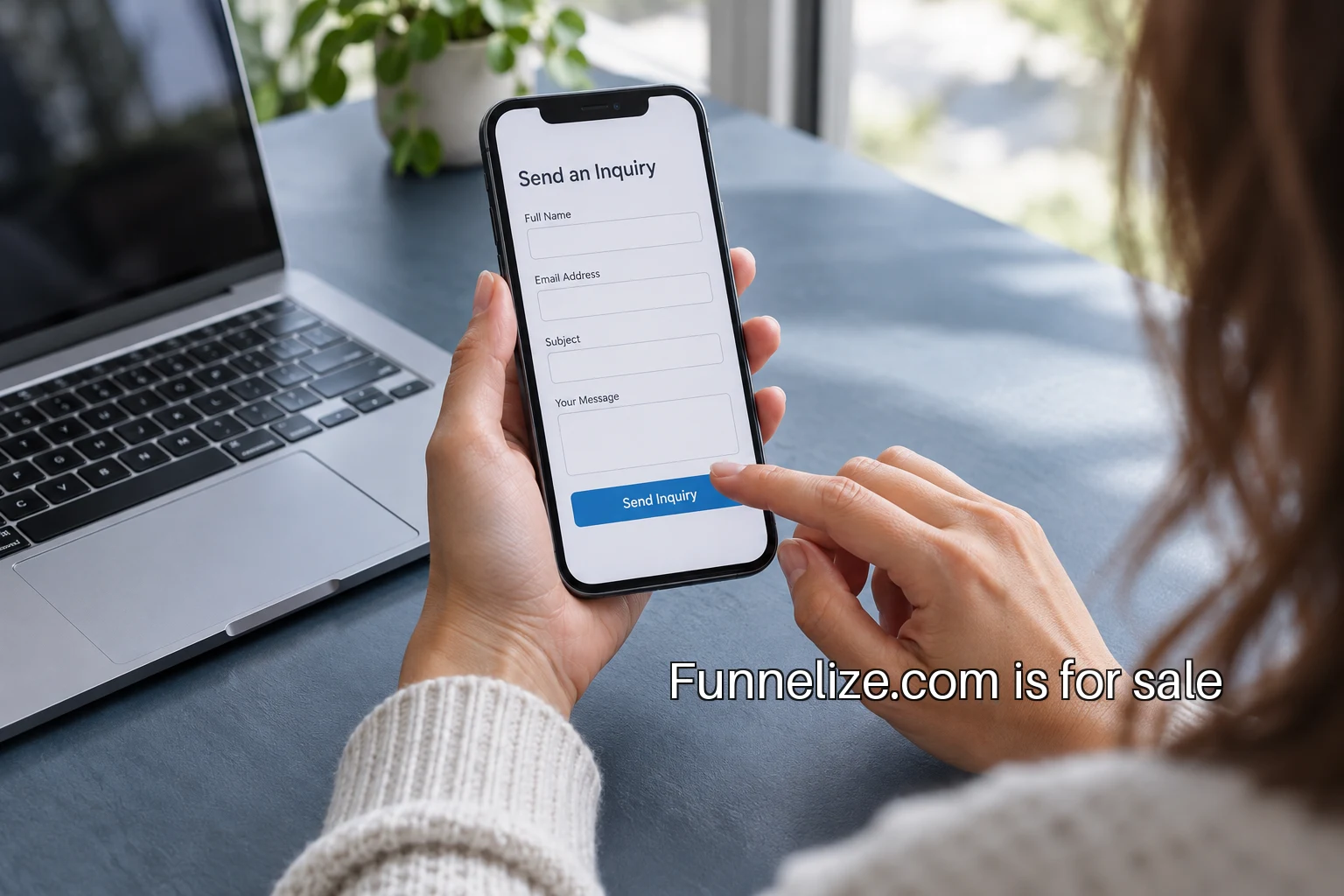
A useful inquiry form helps a person explain enough about their situation for a conversation to begin. Reviewing one does not require a complete redesign. Open the form on a phone, bring a keyboard to the desktop version and take one question at a time. Look at what the person needs to understand, what the business needs to receive and what happens when either side encounters a problem.
Begin with the task rather than the number of fields. A five-field form can still ask five confusing questions. A longer form can make sense when every answer has a clear purpose and the person understands why it matters. The review should produce specific decisions about labels, instructions, required information and recovery, rather than a general instruction to make the form shorter.
Give every question an owner
List the fields in order. Beside each one, write who uses the answer and what decision it changes. A service-area field may determine which team receives the inquiry. A company name may help prepare for a call. A free-text question may give the visitor room to explain something that the fixed choices missed. If nobody can name the use, ask whether the question belongs in the first contact.
Consider an illustrative form for an office design consultancy. The team needs a contact address, project location and an indication of the project's stage. Asking for a precise budget may be premature if the visitor is still defining the space. The team could ask an optional question about what has already been decided, then discuss budget during a suitable conversation. That is a business decision informed by how the inquiry is handled.
Keep labels available while people type
The W3C labeling guidance explains how to associate labels with form controls. In the review, check that every field has a clear label and that clicking the label reaches the expected control. A hint inside an empty field should not carry all the information needed to understand the question, because the person still needs that information after entering an answer.
Choose words that match the visitor's task. Project location is more direct than territory classification. If the answer can be approximate, explain that before the person begins. Keep examples separate from prefilled answers so a sample does not accidentally become submitted data. Look for internal abbreviations that made sense to the team building the form but will mean little to a new visitor.
Explain requirements at the right moment
Make required and optional questions easy to distinguish. If an answer must follow a particular format, put the instruction beside the field. A visitor should not have to trigger an error to discover the expected format. For a date, the useful question may be whether the business needs a calendar day, a month or an approximate period. Select the control after deciding what information is actually useful.
Review the default choices too. A dropdown beginning with a real answer can accidentally submit an option the person never selected. A radio group may need an initially unselected state so the visitor makes a deliberate choice. Read the completed record from the receiving team's perspective and ask which answers came from the visitor and which were supplied by the interface.
Reveal conditional questions deliberately
A form may ask a different follow-up question for a buyer and a partner, or for a new project and an existing one. Select each branch and inspect the result. The active fields should be understandable in context. Questions belonging to an inactive branch should stop participating in required validation and submission. A person changing their answer should not be trapped by a hidden field they can no longer reach.
Use the keyboard to make the same selections. Follow focus as the new fields appear. The order should remain predictable, and the selected option should be visible. On a phone, check that the page does not jump to an unrelated place or hide the new question behind a sticky element. These are behaviors that a static screenshot cannot establish.
Help people recover from mistakes
The W3C validation tutorial describes validation as a way to help people avoid and correct input mistakes. Test a missing required answer and an incorrectly formatted email address. A useful message names the field and the repair. It should leave the rest of the person's work available so correcting one answer does not become a complete restart.
Test when the message appears. An error shown while the person is still composing an answer can be distracting. A message shown only at the top of a long page may be difficult to connect to the field. Review the wording, location and focus behavior together. The person needs both an explanation of the problem and a practical path to fixing it.
Also test failures that are not the visitor's fault. A processing service may be unavailable or a security check may expire. The message should distinguish a correction the person can make from a temporary system problem. Preserve entered information where appropriate and offer a clear retry path. Avoid claiming that the request reached the business when the system has not established that state.
Read the confirmation literally
A button click, a network request and an accepted inquiry are different events. Review what the server actually confirms before writing the message shown afterward. If the system only knows that it accepted a request for processing, the confirmation should reflect that fact. Delivery to a mailbox and assignment to a team member require their own evidence.
Read every promise on the completion screen with the person who owns the receiving process. If the page promises a response time, there needs to be an operating commitment behind it. If it tells the visitor to check their email, verify that an email is actually sent. A truthful, useful confirmation explains what just happened and provides the relevant next step without inventing certainty.
Complete a small review record
Write down the form's URL, the date, the device and the branches tested. Record each issue as an observation and a proposed change. For example: the project-stage option is required but the empty state looks like a selected answer; change the initial option and verify the resulting record. This gives the implementer a bounded task and the reviewer a way to confirm it.
After changes, repeat the affected paths on a phone and with a keyboard. Include a successful submission under an agreed test procedure, then inspect the receiving record. Keep the evidence for the interface and the handoff separate. The form is ready for normal use when the person can understand and complete the task and the business can identify what arrived and what happens next.